Showing posts with label Canva Pro. Show all posts

Wednesday, 8 March 2023

Design a quote post with Canva for International Women's Day

Join me with this step-by-step on how to design a quote post from scratch/blank page for the theme International Women's Day. 


1. Open Canva: Log in to your Canva account or create a new one if you don't have one already.

2. Choose a template: Click on the 'Create a design' button and search for the 'Instagram Post' template. Choose the template that you like. I'm using instagram post, square (1080 x 1080 px)

3. Select a background: Click on the 'Background' option on the left sidebar and choose a background color or image that fits the theme of International Women's Day. I used white background for mine and added watercolour splash effect from the elements selection. 

4. Add a quote: Click on the 'Text' option on the left sidebar and select a font that you like. Type in the quote that you want to feature in the post. You add in quotes that you like or ask chatGPT for famous quotes and select from there. I am using this quote from Coco Chanel "The most courageous act is still to think for yourself. Aloud." I also added this year's theme which is, “DigitALL: Innovation and technology for gender equality,”

5. Next, customize the quote: Use the editing tools to change the font size, color, and alignment to make the quote stand out.

6. Add a graphic: Click on the 'Elements' option on the left sidebar and search for a graphic or icon that complements the quote. Drag and drop it onto the post. I added peonies as it's my favourite flowers (tips for searching peony elements : type in peonies, peony leaves, line drawing peonies) 

This year's theme is, “DigitALL: Innovation and technology for gender equality,” which highlights the role of innovative technology in promoting gender equality and meeting the health and developmental needs of women and girls. 

So, for the graphic elements, I searched for keyword "technology" and selected the image that suit into my quote design. And I also searched keyword "strong woman" and selected the graphic that I like to be in the design.

7. Then, customize the graphic: Use the editing tools to adjust the size, color, and placement of the graphic.

8. Lastly, download and share: Click on the 'Download' button at the top of the screen to save the post to your computer. You can then share it on your social media channels to celebrate International Women's Day!


That's it! With these simple steps, you can design a beautiful quote post to honor women on International Women's Day.

Here's my take with Canva to design a Happy International Women's Day!


If you would like to edit from this post or this kind of design, you can click here to edit. I'm usign canva pro for this design but you can use canva free to edit according to your style as well. Or else you can always try canva pro trial for free to see if your preference on using Canva. Hope you will enjoy designing it with Canva like me.

Woman’s Day is an amazing opportunity to remind ourselves that fighting for our ladies is a very important thing to do. Support every woman around you and respect everything they do, because they deserve it.

Every life begins with a woman. We tend to forget about that. On this day, let’s thank every woman in our life and show them some love. Happy Women's Day!

Wednesday, 22 February 2023

Step-by-Step Guide: Creating Stunning Birthday Cards with Canva Pro - Impress Your Loved Ones Today!

Create Personalized Birthday Cards with Canva Pro

Are you tired of buying generic birthday cards from the store? Why not create your own unique card that your loved one will cherish forever? With Canva Pro, you can easily create personalized and stunning birthday cards that will make the recipient feel special and loved.


Here's a step-by-step guide to creating a birthday card with Canva or Canva Pro:


Step 1: Sign up for Canva Free or Canva Pro

If you're not already a Canva or Canva Pro user, you'll need to sign up. I personally fell in love with Canva Pro as Canva Pro provides access to an extensive library of design elements, including illustrations, photos, and templates. Plus, you can create custom designs and save them for future use.


Step 2: Choose a template

Canva Pro has a vast selection of birthday card templates to choose from. You can search for templates by keywords like "birthday," "celebration," or "greeting card." Once you find a template you like, click on it to open the design.


Step 3: Customize the design

Canva Pro makes it easy to customize your design. You can change the text, font, colors, and images to make the card your own. You can also add your own photos or illustrations to the design.


Step 4: Add special features

To make your card extra special, you can add special features like animations or music. Canva Pro has a range of animated stickers and elements that you can use to add movement and interest to your design. You can also add music or sound effects to your design to create a unique and memorable experience.


Step 5: Download and print

When you're happy with your design, you can download it in a range of formats, including PDF, JPG, or PNG. You can then print the design at home or take it to a print shop to create a high-quality physical card.


Creating a birthday card with Canva Pro is easy and fun. With access to a vast library of design elements, you can create a unique and personalized card that your loved one will treasure for years to come. So why not give it a try today and make your loved one's birthday extra special!


Here is my personalized boba tea theme birthday card with Canva Pro. You can make your own message and graphics. I put mine as below: 

To my dearest bes-tea, and you can put the name of recipient. 

Happy Birthday, have a Tea-rrific Birthday! May this day bring you happiness. It'll be a Tea-rrific one!

Lots of boba-love from, ....... I share the link below if you would like to try it


Tuesday, 7 February 2023

Canva: The Perfect Valentine's Day and February Planner Solution

It's February!

Valentine's Day is just right around the corner, and it's time to start planning! Whether you're organizing a romantic date with your significant other or simply need to plan out your work schedule, Canva can help make your life easier.

Canva is a graphic design platform that offers an array of templates and tools for creating beautiful and professional-looking designs. It's a user-friendly platform that requires no prior design experience and is accessible to anyone with an internet connection.

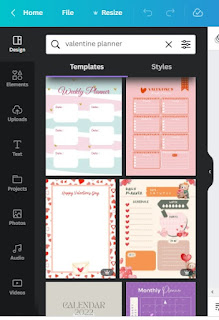
One of the many features of Canva is its planner templates. These templates come in various designs, from simple and minimalist to elaborate and whimsical. You can customize the templates to match your personal style, add your own text, images, and even change the colors to match your preferences.

With Canva's Valentine's Day and February planner templates, you can create a personalized and visually appealing planner to help you keep track of your appointments, events, and to-do lists. Whether you prefer a physical planner or an electronic version, Canva offers both options, so you can choose the one that works best for you.

Many templates and design for you to choose or re-create or be inspired


For those who are planning a romantic Valentine's Day, Canva has a vast selection of templates to choose from. You can create a romantic invitation, create a special menu, or even plan a surprise date. With Canva's drag-and-drop interface, you can quickly and easily create a beautiful design that reflects the love and romance of the season.

In conclusion, Canva is the perfect solution for all your Valentine's Day and February planning needs. With its user-friendly interface, customizable templates, and wide range of features, you'll be able to create a planner that is not only functional but also aesthetically pleasing. So why wait? Start planning with Canva today and make the most of your Valentine's Day and February!


I designed this with Canva Pro. Try it out with their free 30-days trial or the canva free. 

Saturday, 4 February 2023

Celebrating Chap Goh Meh with Canva Pro Designs: Creating Festive Graphics for the Lunar New Year


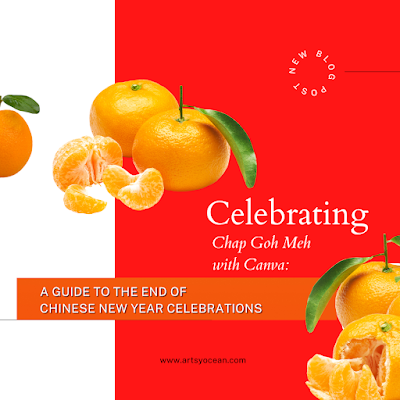
New blog post announcement image designed with canva pro. 
Click image to redirect to the blog post! 

And yes, with canva, you can design image for new blog post or content announcement too! Creating a new blog post announcement is an exciting way to share your latest content with your audience. To make sure your announcement is visually appealing and optimized for search engines, consider using Canva Pro.

Canva Pro is a graphic design tool that makes it easy for anyone to create professional-looking designs, even if you have no design experience. With Canva Pro, you can create eye-catching blog post announcements that will grab the attention of your audience and help improve your search engine optimization (SEO).

Here’s how you can create a new blog post announcement with Canva Pro:

1) Start by signing up for a Canva Pro account. This will give you access to all of the premium features and templates that Canva has to offer.

2) Choose a template that suits the style of your blog and brand. There are many templates to choose from, so take your time and find one that fits your needs. For my design, I change entirely the colour and image of the template. There are various, plenty of choices for you to design and customize your creation.

3) Customize the template with your own text, images, and colors. Canva has a drag-and-drop interface that makes it easy to add and arrange elements on your design.

4) Make sure to include relevant keywords in your text to help improve your SEO. For example, if your blog post is about a specific topic, make sure to include that topic in your announcement.

5) When you’re finished, download your design and share it on your social media platforms. This is a great way to reach a wider audience and drive more traffic to your blog.

By using Canva Pro, you can create a new blog post announcement that is both visually appealing and optimized for search engines. So, sign up for Canva Pro today and start creating your own blog post announcements!


[Special] 30 Day Trial | Canva Pro Subscription

Celebrating Chap Goh Meh and Thaipusam: Wishing Joy and Prosperity to All

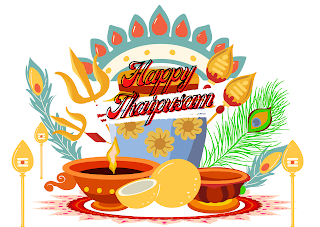
Happy Chap Goh Meh & Happy Thaipusam everyone!


The start of the lunar new year is an exciting time for many communities around the world. For the Chinese community, it is a time to gather with loved ones, clean the house, and welcome good fortune in the form of Chap Goh Meh. On the other hand, the Hindu community marks the celebration of Thaipusam, a festival dedicated to Lord Murugan, the Hindu deity of war and victory.

Chap Goh Meh, also known as the 15th day of the Chinese New Year, is a time to reflect on the past and look forward to the future. It is a time to let go of old grudges, make amends, and start fresh. The tradition of young women throwing oranges into the sea symbolizes letting go of their single status and searching for a new love.

Thaipusam, on the other hand, is a time for spiritual renewal and devotion. Devotees carry kavadis, or elaborately decorated structures, as an offering to Lord Murugan, and also participate in acts of self-punishment such as body piercing to show their devotion.

Both Chap Goh Meh and Thaipusam are vibrant celebrations filled with colourful processions, music, and joyous festivities. It is a time to come together with loved ones and celebrate the many blessings in life.

As we mark the start of the lunar new year, we wish everyone a happy Chap Goh Meh and Thaipusam. May this time be filled with joy, peace, prosperity, and good health for all. Let us come together to celebrate and make this a time to remember.


Both the greetings images were designed with canva pro. I am totally in love with canva pro now (a convert from canva free to canva pro). Try it out and see whether you would prefer canva free or canva pro. Both offer tons of options. For me, as for now, canva pro has made it alot easier for me to make a quick design especially for making greeting cards and wishes. 

Again, wishing everyone a Happy Chap Goh Meh, Happy Thaipusam and have a blessed Sunday! Have a wonderful celebration and stay safe.

Celebrating Chap Goh Meh with Canva: A Guide to the End of Chinese New Year Celebrations

The 15th day of the Chinese New Year (also means the 15th night of Chinese New Year in Hokkien) marks the end of the festive season, but it also marks the beginning of a special occasion for singles - Chap Goh Meh. Originating from Malaysia, Chap Goh Meh is a traditional Chinese festival that celebrates love and provides a platform for single individuals to mingle and potentially find love. In this post, we’ll explore the history, cultural significance, and activities associated with Chap Goh Meh, and show you how you can use Canva to design stunning visuals for your Chap Goh Meh celebration. This year will also be a double joy of festive Sunday as Chap Goh Meh coincides with the Thaipusam celebration. 


The History and Cultural Significance of Chap Goh Meh:

Chap Goh Meh has its roots in the northern region of Penang, Malaysia and is celebrated as the final day of Chinese New Year festivities. It is a day for single individuals to find love and happiness through various traditional activities, such as dragon and lion dances, food, and cultural performances. The festival symbolizes the end of winter and the arrival of spring, signifying new beginnings and growth.

This year Chap Goh Meh 2023 celebration is at Esplanade, Penang.

Tips and Activities for Celebrating Chap Goh Meh:

For those looking to participate in Chap Goh Meh celebrations, here are some tips and activities to consider:

❤ Visit traditional Chinese temples to participate in dragon and lion dances and other cultural performances.

❤ Attend Chap Goh Meh festivals held in major cities around the world.

❤ Participate in events such as matchmaking events, lantern festivals, and traditional food and drink festivities.

❤ Visit local Chinese restaurants to enjoy traditional foods and drinks, such as tangerine tea, rice dumplings, and rice cakes.

Using Canva for Your Chap Goh Meh Celebration:

Canva is a user-friendly design platform that can help you create stunning visuals for your Chap Goh Meh celebration. Whether you’re creating invitations, posters, or social media graphics, Canva has a range of templates and design elements to choose from. Here are a few ideas to get you started:

❤ Design an eye-catching card, greetings or poster to promote your Chap Goh Meh celebration.

❤ Create unique and personalized invitations to send to your friends and family.

❤ Use Canva to design social media graphics to share on your profiles and spread the word about your celebration.

Chap Goh Meh is a unique and wonderful festival that provides single individuals with the opportunity to mingle and potentially find love. Whether you’re a local or a visitor, this festival offers a chance to immerse yourself in Chinese culture, enjoy traditional activities, and make memories that will last a lifetime. So, go ahead and celebrate Chap Goh Meh with gusto, and make the most of your celebration with Canva!


I had so much fun creating this festive vibes of Chinese New Year - Chap Goh Meh design. This is my Chap Goh Meh card wishes created by Canva Pro. Try it out for free or trial and see how Canva can help you in creating whatever design that you would like to customize.

That's all for now! 

Wednesday, 1 February 2023

Step-by-Step Guide to Creating Inspiring Life Quote Designs with Canva


How to create inspiring quote design with canva like I did.

1. Sign up for a Canva account or log in to your existing account.

2. Choose a design template or start a design from scratch by selecting the "Custom Dimensions" option. - I choose flyer (template) for mine.

3. Choose a background color or upload an image to use as the background.

I'm using color code misty rose #FFEAE3 and other recommended color palette from canva.

4. Select the "Text" tool and add your chosen motivational quote to the design. You can adjust the font, size, and color to match your brand or preference.

I use font type - adventime, glacial indifference & muller

5. Add additional design elements to enhance the quote, such as graphics, shapes, or images. You can find these elements in the "Elements" tab on the left-hand side of the screen.

I use line arts and boxes for this design.

6. Adjust the placement and size of the design elements as desired.

7. When you are satisfied with your design, save it by clicking the "Download" button in the top right corner. You can choose to download your design as an image file or a PNG with a transparent background.

8. You can now use your design as your phone background, social media post, or even as a print to hang in your workspace.


These steps are a general guide to creating a design in Canva. The platform is user-friendly, and you can easily explore different features and options to create a design that fits your needs and preferences. Hope you enjoy creating some motivational for yourself, your friends or whoever that might need it. Feel free to share your creations...


❤️  

Start you canva pro free trial or canva free here.

Unleash Your Potential: Inspiring February Quotes and Canva Design Tips

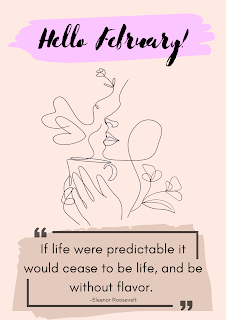
 Hey February: Motivational Quotes and Canva Design

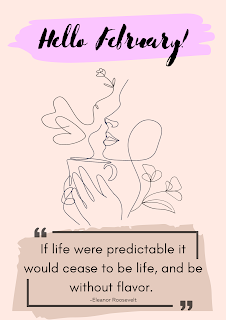
Hey Lovelies, it's February! and I have created this template from canva pro for my February motivation quote.

Feel free to edit this template for your own use here 
However, this is only available for canva user pro.
You can still try it out with canva pro free trial


February is a month of new beginnings and fresh starts. As we welcome this month with open arms, let us take a moment to reflect on our goals and aspirations. To help you stay motivated, we have compiled a list of inspiring quotes that you can use as daily affirmations.


“Success is not final, failure is not fatal: it is the courage to continue that counts.” - Winston Churchill

“Believe in yourself and all that you are. Know that there is something inside you that is greater than any obstacle.” - Christian D. Larson

“Don’t watch the clock; do what it does. Keep going.” - Sam Levenson

“The future belongs to those who believe in the beauty of their dreams.” - Eleanor Roosevelt

“The only way to do great work is to love what you do.” - Steve Jobs

"If life were predictable it would cease to be life, and be without flavor." -Eleanor Roosevelt


Now that you have some inspiration, why not create a visual representation of these quotes? Canva is a design platform that allows you to create beautiful graphics and designs with ease. With its user-friendly interface, you can easily create eye-catching designs to use as your phone background, social media posts, or even as prints to hang in your workspace.

In conclusion, February is a time to reflect, renew and take control of our lives. With these motivational quotes and the power of Canva, you can stay inspired and motivated to reach your goals. So, let’s make this month count and believe in ourselves and the beauty of our dreams.

Sunday, 22 January 2023

Ring in the Lunar New Year: Wishing you a Joyful and Prosperous Chinese New Year Celebration in the Year of the Rabbit

Happy Chinese New Year! 


The Chinese New Year, also known as the Spring Festival or the Lunar New Year, is a time for families to come together and celebrate the start of a new year on the lunar calendar. This year marks the Year of the Rabbit, which is said to bring peace, stability, and good luck.

One of the most important traditions during the Chinese New Year is the exchange of red envelopes filled with money, known as "hongbao," between family and friends. The red colour symbolizes good luck and prosperity for the new year.

Designed with canva pro. Try it out for free

Decorations, such as red lanterns and paper cutouts, are also commonly used to add a festive touch to homes and businesses. In addition, fireworks and lion dances are often performed to drive away evil spirits and bring good luck for the new year.

Designed with canva pro. Try it out for free

Food also plays a big role in the Chinese New Year celebrations. Traditional dishes such as dumplings, fish, and sticky rice cakes are often served. The round shape of dumplings symbolizes unity and togetherness, while the fish represents abundance and surplus for the new year.

Designed with canva pro. Try it out for free


Another important aspect of the Chinese New Year is the reunion dinner, where family members gather together to enjoy a feast and catch up on each other's lives. It is considered a time for forgiveness, harmony and good wishes for the upcoming year.


                                                             Designed with canva pro. Try it out for free


Wishing you and your family a happy and prosperous Chinese New Year! 

May the year of the Rabbit bring you peace, stability, and good luck in all your endeavors.

Friday, 13 January 2023

How to Use Canva Pro's Background Remover

Are you like me where I used to download the app 'background remover' in my phone to remove unwanted background and manually edit my photo, beautify it and edit it before posting to my social media. And way before the existence of such app, I actually manually crop and trace to remove my image background in Adobe photoshop and edit everything in it. It took quite some time for me as I don't have photoshop experience (I learn it manually when doing some design - mostly on wedding and invitation cards). But now, with Canva Pro's background remover , everything become so so sooo much easier. I can just upload my image and click remove background and use the image to put in my design such as birthday invitation, wedding invitation, IG post and anything that you want to. 

So, what is Canva Pro's Background Remover?


Canva Pro's Background Remover is a feature that allows you to remove the background of an image, leaving only the subject of the image visible. Here is a step-by-step guide on how to use the Background Remover in Canva Pro:

1. Open Canva Pro and log in to your account (you can try a free trial of canva pro and play around with it)

2. Click on the "Create a design" button to start a new project.

3. In the editor, click on the "Uploads" button on the left sidebar and upload the image that you want to remove the background from.

4. Once the image is uploaded, click on it to select it.

5. In the top right corner of the editor, click on the "Effects" button, then select "Remove background"

6. The Background Remover tool will automatically detect the edges of the subject in the image and create a rough mask of the subject. You can use the brush tool to refine the mask and adjust the edges of the subject.

7. Once you are satisfied with the mask, click on the "Apply" button to remove the background.

8. You can then use the image without background in your design, or use the transparent background feature to add background color or another image.

Note that the background remover feature may not work perfectly in all images, especially those with complex backgrounds or subjects with similar colors to the background. In that case, you may need to manually edit the mask.

Here is how I did mine... 

here's my AI created masculine ducky image 


and click remove background in the Canva Pro and tadaa... a clean ducky image. I saved it as png file with transparent background, so that I will be able to use it in my other design. 
If you are like me, where you like to mix and match images and create another new design in order to be different or not duplicating the original design that got you inspired, this tool will be very handy for you. Try it out now with Canva Pro! You will not regret.