Showing posts with label canva. Show all posts

Wednesday, 8 March 2023

Design a quote post with Canva for International Women's Day

Join me with this step-by-step on how to design a quote post from scratch/blank page for the theme International Women's Day. 


1. Open Canva: Log in to your Canva account or create a new one if you don't have one already.

2. Choose a template: Click on the 'Create a design' button and search for the 'Instagram Post' template. Choose the template that you like. I'm using instagram post, square (1080 x 1080 px)

3. Select a background: Click on the 'Background' option on the left sidebar and choose a background color or image that fits the theme of International Women's Day. I used white background for mine and added watercolour splash effect from the elements selection. 

4. Add a quote: Click on the 'Text' option on the left sidebar and select a font that you like. Type in the quote that you want to feature in the post. You add in quotes that you like or ask chatGPT for famous quotes and select from there. I am using this quote from Coco Chanel "The most courageous act is still to think for yourself. Aloud." I also added this year's theme which is, “DigitALL: Innovation and technology for gender equality,”

5. Next, customize the quote: Use the editing tools to change the font size, color, and alignment to make the quote stand out.

6. Add a graphic: Click on the 'Elements' option on the left sidebar and search for a graphic or icon that complements the quote. Drag and drop it onto the post. I added peonies as it's my favourite flowers (tips for searching peony elements : type in peonies, peony leaves, line drawing peonies) 

This year's theme is, “DigitALL: Innovation and technology for gender equality,” which highlights the role of innovative technology in promoting gender equality and meeting the health and developmental needs of women and girls. 

So, for the graphic elements, I searched for keyword "technology" and selected the image that suit into my quote design. And I also searched keyword "strong woman" and selected the graphic that I like to be in the design.

7. Then, customize the graphic: Use the editing tools to adjust the size, color, and placement of the graphic.

8. Lastly, download and share: Click on the 'Download' button at the top of the screen to save the post to your computer. You can then share it on your social media channels to celebrate International Women's Day!


That's it! With these simple steps, you can design a beautiful quote post to honor women on International Women's Day.

Here's my take with Canva to design a Happy International Women's Day!


If you would like to edit from this post or this kind of design, you can click here to edit. I'm usign canva pro for this design but you can use canva free to edit according to your style as well. Or else you can always try canva pro trial for free to see if your preference on using Canva. Hope you will enjoy designing it with Canva like me.

Woman’s Day is an amazing opportunity to remind ourselves that fighting for our ladies is a very important thing to do. Support every woman around you and respect everything they do, because they deserve it.

Every life begins with a woman. We tend to forget about that. On this day, let’s thank every woman in our life and show them some love. Happy Women's Day!

Wednesday, 22 February 2023

Step-by-Step Guide: Creating Stunning Birthday Cards with Canva Pro - Impress Your Loved Ones Today!

Create Personalized Birthday Cards with Canva Pro

Are you tired of buying generic birthday cards from the store? Why not create your own unique card that your loved one will cherish forever? With Canva Pro, you can easily create personalized and stunning birthday cards that will make the recipient feel special and loved.


Here's a step-by-step guide to creating a birthday card with Canva or Canva Pro:


Step 1: Sign up for Canva Free or Canva Pro

If you're not already a Canva or Canva Pro user, you'll need to sign up. I personally fell in love with Canva Pro as Canva Pro provides access to an extensive library of design elements, including illustrations, photos, and templates. Plus, you can create custom designs and save them for future use.


Step 2: Choose a template

Canva Pro has a vast selection of birthday card templates to choose from. You can search for templates by keywords like "birthday," "celebration," or "greeting card." Once you find a template you like, click on it to open the design.


Step 3: Customize the design

Canva Pro makes it easy to customize your design. You can change the text, font, colors, and images to make the card your own. You can also add your own photos or illustrations to the design.


Step 4: Add special features

To make your card extra special, you can add special features like animations or music. Canva Pro has a range of animated stickers and elements that you can use to add movement and interest to your design. You can also add music or sound effects to your design to create a unique and memorable experience.


Step 5: Download and print

When you're happy with your design, you can download it in a range of formats, including PDF, JPG, or PNG. You can then print the design at home or take it to a print shop to create a high-quality physical card.


Creating a birthday card with Canva Pro is easy and fun. With access to a vast library of design elements, you can create a unique and personalized card that your loved one will treasure for years to come. So why not give it a try today and make your loved one's birthday extra special!


Here is my personalized boba tea theme birthday card with Canva Pro. You can make your own message and graphics. I put mine as below: 

To my dearest bes-tea, and you can put the name of recipient. 

Happy Birthday, have a Tea-rrific Birthday! May this day bring you happiness. It'll be a Tea-rrific one!

Lots of boba-love from, ....... I share the link below if you would like to try it


Wednesday, 1 February 2023

Step-by-Step Guide to Creating Inspiring Life Quote Designs with Canva


How to create inspiring quote design with canva like I did.

1. Sign up for a Canva account or log in to your existing account.

2. Choose a design template or start a design from scratch by selecting the "Custom Dimensions" option. - I choose flyer (template) for mine.

3. Choose a background color or upload an image to use as the background.

I'm using color code misty rose #FFEAE3 and other recommended color palette from canva.

4. Select the "Text" tool and add your chosen motivational quote to the design. You can adjust the font, size, and color to match your brand or preference.

I use font type - adventime, glacial indifference & muller

5. Add additional design elements to enhance the quote, such as graphics, shapes, or images. You can find these elements in the "Elements" tab on the left-hand side of the screen.

I use line arts and boxes for this design.

6. Adjust the placement and size of the design elements as desired.

7. When you are satisfied with your design, save it by clicking the "Download" button in the top right corner. You can choose to download your design as an image file or a PNG with a transparent background.

8. You can now use your design as your phone background, social media post, or even as a print to hang in your workspace.


These steps are a general guide to creating a design in Canva. The platform is user-friendly, and you can easily explore different features and options to create a design that fits your needs and preferences. Hope you enjoy creating some motivational for yourself, your friends or whoever that might need it. Feel free to share your creations...


❤️  

Start you canva pro free trial or canva free here.

Unleash Your Potential: Inspiring February Quotes and Canva Design Tips

 Hey February: Motivational Quotes and Canva Design

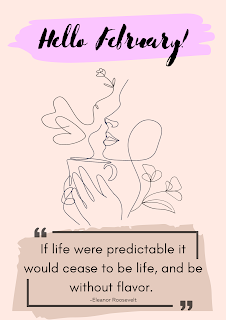
Hey Lovelies, it's February! and I have created this template from canva pro for my February motivation quote.

Feel free to edit this template for your own use here 
However, this is only available for canva user pro.
You can still try it out with canva pro free trial


February is a month of new beginnings and fresh starts. As we welcome this month with open arms, let us take a moment to reflect on our goals and aspirations. To help you stay motivated, we have compiled a list of inspiring quotes that you can use as daily affirmations.


“Success is not final, failure is not fatal: it is the courage to continue that counts.” - Winston Churchill

“Believe in yourself and all that you are. Know that there is something inside you that is greater than any obstacle.” - Christian D. Larson

“Don’t watch the clock; do what it does. Keep going.” - Sam Levenson

“The future belongs to those who believe in the beauty of their dreams.” - Eleanor Roosevelt

“The only way to do great work is to love what you do.” - Steve Jobs

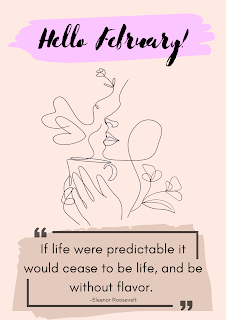
"If life were predictable it would cease to be life, and be without flavor." -Eleanor Roosevelt


Now that you have some inspiration, why not create a visual representation of these quotes? Canva is a design platform that allows you to create beautiful graphics and designs with ease. With its user-friendly interface, you can easily create eye-catching designs to use as your phone background, social media posts, or even as prints to hang in your workspace.

In conclusion, February is a time to reflect, renew and take control of our lives. With these motivational quotes and the power of Canva, you can stay inspired and motivated to reach your goals. So, let’s make this month count and believe in ourselves and the beauty of our dreams.

Thursday, 12 January 2023

How to Get Creative with AI image and Amazing Mockup in Canva

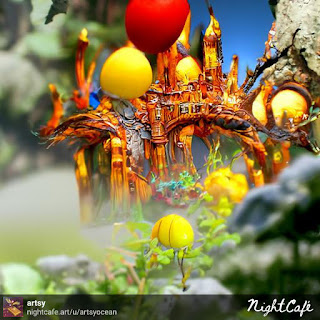
I was curious with AI image creation and stumbled upon creator.nightcafe.studio and got excited as I first started created one image then to another image. The excitement began with curiosity of the idea in your mind and what will be the outcome of the image. As everyone has different imagination and ideas, I believe there will be no same images that can appear (unless probably if you can copy the exact same prompts? I'm not sure about that). Anyhow, here is one of my first AI image from creator.nightcafe.studio . You can go to their website and create for free. If you decided to explore more, you can login and they will give free credits everyday for you to claim. Fun right? 


So, the next step that I thought of after creating this image is to edit it in Canva.  One of the feature that I discovered and like in Canva is the smartmockups tool. I just discovered about it when I was designing a wedding table signage and wedding invitation card where I would like to see how will the design fit. With this AI image, I tried and did a mockup of a mug with the image in Canva. However, this feature can only be used in Canva Pro. But you can always try their Canva free trial for 45 days  without any charges. I think they offered that for a limited time offer. I started with their free Canva and then Canva pro trial after.  Here is how the mockup page looks like. Basically, you can select type of mockup that you want and just drag and drop your design to it.


Here it is the design on a mug. So, you can actually send your design creation to a mug printer shop and get your desired image on it. Imagine the endless possibilities that you can do depending on what you like. It could be printing your AI creation images on your notebook cover, tags, stickers, planners, pillow case and so on.

After seeing the mug, I have another idea... which is to make another mockup of my computer table with the imagination of using the mug with my AI beautifully created image. Here it is... tadaaa.... 
So, next time you have an idea or image creation that crossed your mind, don't forget to create it or you can even create something from it and make it as a personalized gift to your friends or loved ones.

Where is my coffee mug? Can you spot it? Wordings designed in Canva too (they have a wide varieties of font types and style and colours too!)


Hope you enjoy to learn about this smartmockup tool in Canva as much as I did and I am still learning and exploring. 

Let me know what feature or tool did you discovered first in Canva. Don't forget to start with their free Canva if you would like to have a peek on it first.


Tuesday, 10 January 2023

Get Your Creative Freedom Outlet with Canva

Have you heard of Canva ? I have not until last year and I started with their free trial and got hooked...

Canva is all about unleashing your inner spark that you might not even know what are you capable of! Canva is a powerful design tool that helps you to create stunning artwork and designs. With its user-friendly interface, you can easily get creative and explore your artistic side. Whether you're creating artwork for a website, brochure, planners, stickers or other print material, Canva has the tools to help you bring your vision to life. 

It is a very user friendly platform even for a beginner with no designing background. From customizing text, images and shapes to adding special effects like gradients and shadows, Canva has everything you need to make your design stand out from the crowd.

Whether you’re a professional designer, or just getting started with graphic design, Canva has something for everyone. It’s easy to use, and provides a great platform to get creative. With its wide range of features and templates, you can quickly create stunning visuals in no time. So, let your creativity run wild and see what amazing things you can create with Canva! 

I have tried it and what about you? Initially, I tried their free trial and you should try it too and experience the free trial to get a feel for what this amazing platform has to offer.


Here's a little personal quote reminder I created with canva pro. I'll create more other designs and share my past designs and what you can create with canva.

created with canva

-believe in yourself  and trust the process-

Thursday, 29 September 2022

Kawaii Inspired Canva Design - Motivational Quote

Today, i made a kawaii design in canva for a motivational quote when you are feeling blue. The kawaii cloud represent the sad feelings but trying to fight it off, hoping and dreaming that one day it will all be magical joyful like a unicorn. The other kawaii cloud represent kawaii heart shapes dancing over the blushing cloud - representing the feelings of wanting to be happy while dwelling in the sadness. Overall, the colour theme is a mixed pastel happy colours to oversome one's sadness.


“Don't cry over someone who wouldn't cry over you.” 

― Lauren Conrad


They say it’s normal to feel sad at times as it is to be happy! 

Remember that sadness is just one of the many emotions we experience as we go through our ups and downs of life. Trust the process and one day, everything will be fine. To everyone out there who struggle with their emotions at times or feeling down and blue, pause for a moment and take a deep breath. Take time to figure out the next steps.

Hope you will have a brighter better day tomorrow and for the days to come.


xoxo


Wednesday, 28 September 2022

Made 10 design with Canva


little celebration for making 10 designs in Canva, hope to design more in this platform.

Practices make progress. For those who wanted to try and play around in Canva, try around with their free templates or free trial. Explore your creative possibilities. 


Monday, 26 September 2022

Wedding Boho Theme - Wedding Invitation Card Idea

Tried a simple design in Canva with bohemian-themed wedding idea -Boho weddings is a theme that incorporate an eclectic mix of natural, rustic, and vintage details into the design. There's a lot of choices of font in canva and if you are to edit on your own, you have to go through a lot of the fonts before deciding with the one you like. As for the theme, it's easily searchable with the right colour palette to mix and match. As for the elements/images to insert, there are plenty of images that is available; which will also take some time to design your template especially if you are new to canva. This is my take on a draft for wedding invitation and save the date card for boho themed wedding. This is for those who likes minimalist simple boho wedding theme. 


Sunday, 25 September 2022

New to Canva! Reimagine the Way You Work

I've been hearing about Canva several times but never get to explore on it. Because I thought it was only for presentation purpose. Something like replacing powerpoint but in a easier and more presentation templates. 

Finally, I'm now ready to try Canva and to try its 30-days free trial. So, what is Canva? Canva is an Australian graphic design platform, used to create social media graphics, presentations, posters, documents and other visual content. The app includes templates for users to use. Basically, you can use Canva to create everything, from instagram reels, stories, post, logo, wedding invitation, pinterest graphics, facebook post, tiktok post, tiktok stories, wedding cards, signages, video and it's like access to infinity designs and as vast as oceans of possibilities for creative minds and also for other users to get their designs done in much more easier way.


The editing layout with various options and multiple images, fonts, types to play around ...